You’re in the scene.
Watch the 54-second guide. No sound needed.
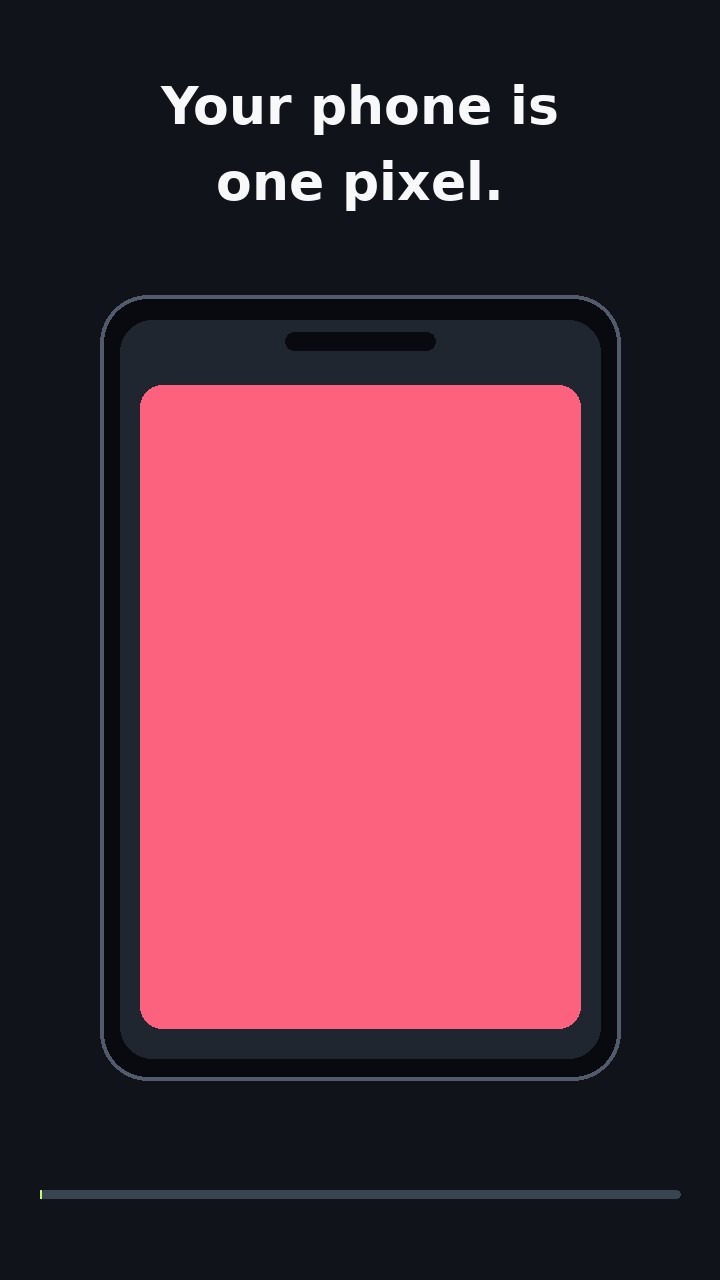
Internet required: use reliable Wi-Fi or cellular data. Assigned seating does not require Wi-Fi specifically. Indoors, connect to venue Wi-Fi if cellular coverage is weak. Keep the app open and check the connection before the countdown.
- Join your school event. Scan its QR code or open your invitation link.
- Assigned seats? Use the organizer’s configured section, enter your row and seat, then confirm “I’m here”. You’re placed; you still check in for each Drop.
- Bleachers or open seating? Select your current position, or use the fixed sign scan when the organizer has enabled it. Camera estimates are experimental. Confirm “I’m here”.
- Check in for every Drop. Keep the app open for the one-minute warning. Scan again or choose your current spot, then confirm you’re ready. You can also check in during a longer Drop, until its final few seconds.
- Watch the countdown. Once ready, phones up for the final 10 seconds. Countdown vibration works where supported.
- Become part of the display. Turn up brightness, face your screen toward the field/court/stage and hold still. If you move, update your spot and confirm again.
- More participants, better detail. Each phone supplies a pixel. More phones spread across the display area fill gaps and make designs easier to recognize.
- Bring your friends. Share the school event through QR, WhatsApp, Instagram or Discord. Add The Drop to your home screen to reopen it later; new events still need their own link or code.
- Coming soon: organizer image and video uploads. These features are planned.
Illustrated walkthrough. Adding an app icon requires your confirmation. Your browser and installed app may keep separate saved sessions.